

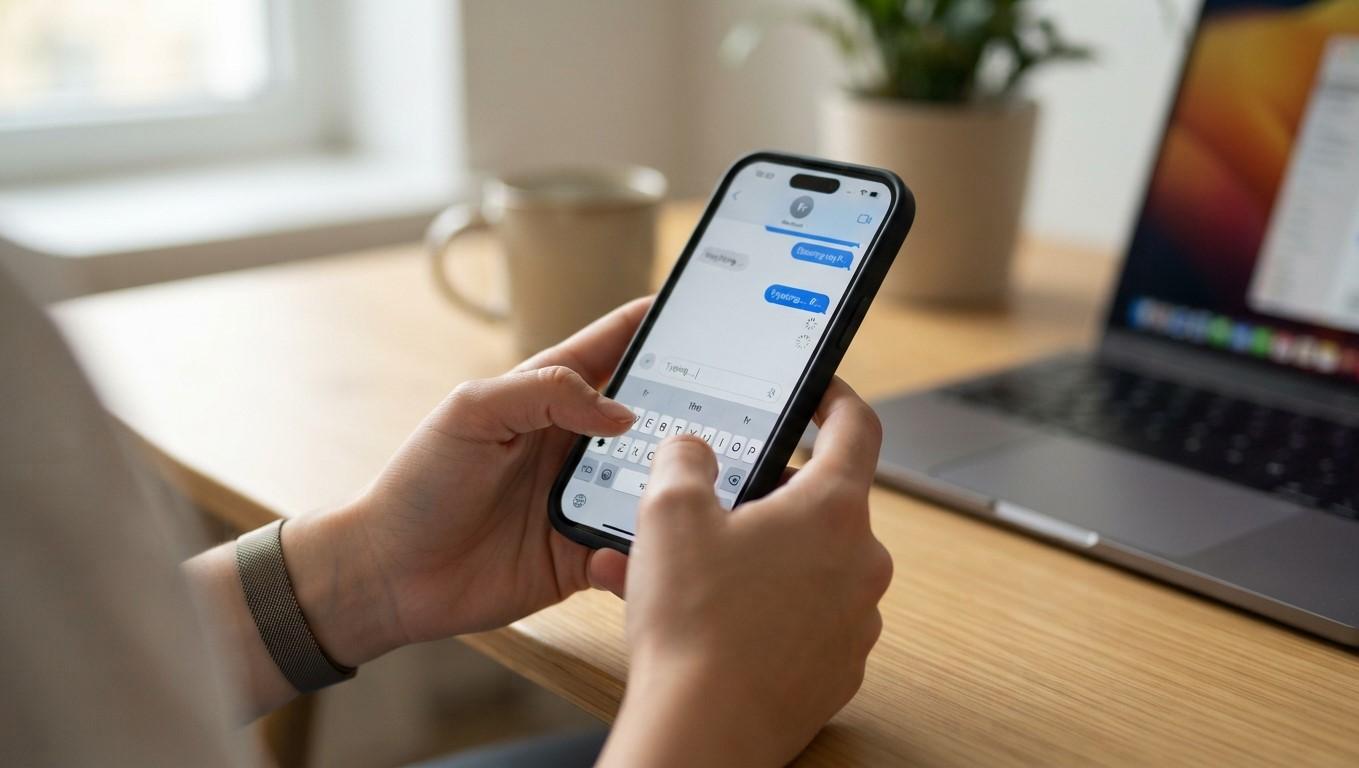
Why Does Your iPhone Keyboard Lag or Freeze While Typing? Common Causes and Fixes

Typing on your iPhone should feel smooth and responsive. However, when the keyboard starts lagging, freezing, or taking several seconds to respond, even simple messages can become frustrating. This problem may be caused by limited storage, software glitches, outdated iOS, or keyboard settings. Whether you need troubleshooting advice or professional iPhone Repair Brooklyn services, understanding the cause is the first step toward finding a solution. If you are also experiencing display-related problems and need iPhone screen repair Brooklyn, identifying the symptoms can help determine the right repair approach.
Table of Contents
-
Common Reasons Your iPhone Keyboard Lags or Freezes
-
How to Fix iPhone Keyboard Problems
-
When Should You Seek Professional Repair?
-
Tips to Prevent Keyboard Lag
-
Frequently Asked Questions
-
Conclusion and Call to Action
1. Common Reasons Your iPhone Keyboard Lags or Freezes
Several issues can affect keyboard performance on your iPhone.
Limited Storage Space
When your iPhone has very little available storage, overall performance may suffer. This can cause apps and keyboard functions to respond slowly.
Outdated iOS Software
An older iOS version may contain bugs that affect keyboard responsiveness, typing suggestions, or system performance.
Too Many Background Apps
Multiple apps running simultaneously can consume system resources. On older devices, this may contribute to slow responses while typing.
Keyboard Settings or Dictionary Issues
Predictive text, autocorrect, and other keyboard features may occasionally behave unexpectedly because of temporary software glitches or settings problems.
App-Related Problems
If the keyboard freezes only in a particular messaging or social media app, the app itself may be responsible rather than the iPhone keyboard.
Display or Touchscreen Problems
A damaged touchscreen or digitizer can make typing difficult. If certain letters do not register or the screen responds unpredictably, a hardware issue may need inspection.
2. How to Fix iPhone Keyboard Problems
Try these simple troubleshooting methods before considering a repair.
Restart Your iPhone
Restarting your device can clear temporary software glitches.
-
Turn off your iPhone.
-
Wait a few seconds.
-
Turn it back on.
-
Open a messaging app and test the keyboard.
Check Available Storage
Go to Settings > General > iPhone Storage. Review your available space and remove unnecessary downloads, duplicate files, or unused apps if needed.
Update iOS
Open Settings > General > Software Update. If an update is available for your device, follow the instructions to install it. Updates may include fixes for keyboard and performance issues.
Disable Predictive Text Temporarily
Navigate to Settings > General > Keyboard and turn off Predictive Text. Test your keyboard to see whether responsiveness improves. You can also temporarily disable other keyboard features to identify possible conflicts.
Update or Reinstall the Affected App
If the keyboard freezes in only one application, check the App Store for updates. If the problem continues, consider reinstalling the app after confirming that important data is backed up.
Reset Keyboard Dictionary
If typing suggestions or autocorrect behave incorrectly, open Settings > General > Transfer or Reset iPhone > Reset > Reset Keyboard Dictionary.
This restores the keyboard dictionary to its default state.
3. When Should You Seek Professional Repair?
If your keyboard continues freezing after troubleshooting, professional diagnosis may help.
Consider having your iPhone inspected if:
-
Certain areas of the screen do not respond to touch.
-
Letters register without being touched.
-
The screen freezes during multiple activities.
-
The device experiences repeated performance problems.
-
Keyboard issues started after a drop or physical damage.
A technician can determine whether the problem involves the display, touchscreen, software, or another component. Not every keyboard issue requires hardware repair, so proper diagnosis is important.
4. Tips to Prevent Keyboard Lag
Follow these habits to maintain smooth typing performance:
-
Keep your iPhone software updated.
-
Maintain sufficient available storage.
-
Close apps that are no longer needed.
-
Update messaging and social media applications.
-
Avoid installing untrusted keyboard applications.
-
Restart your device occasionally.
-
Protect your screen from drops and physical damage.
Regular device maintenance can help reduce performance problems and improve everyday usability.
5. Frequently Asked Questions
Q1. Why does my iPhone keyboard freeze while typing messages?
It may happen because of software glitches, limited storage, outdated apps, or temporary performance issues.
Q2. Can low storage cause keyboard lag?
Yes. Limited available storage can affect overall device performance and may contribute to slow keyboard responses.
Q3. Why does my keyboard work slowly in only one app?
The application may have a software bug or compatibility issue. Updating or reinstalling it may help.
Q4. Can a damaged screen affect keyboard typing?
Yes. Touchscreen or digitizer damage can prevent certain keys from registering correctly or cause unexpected touches.
Q5. Should I reset my iPhone if the keyboard keeps freezing?
Try simpler troubleshooting steps first. If the problem continues, back up your important data before considering more extensive resets.
6. Conclusion and Call to Action
An iPhone keyboard that lags or freezes can make everyday communication difficult. Fortunately, the cause may be something simple, such as limited storage, outdated software, or an app-related glitch. Restarting your device, checking storage, and reviewing keyboard settings can often help restore normal performance.
If the problem persists or your touchscreen shows signs of physical damage, professional diagnosis may be necessary. For dependable iPhone Repair Brooklyn services, including iPhone screen repair Brooklyn and other device repair solutions, Avenue D Cellular is a local option to consider. If your iPhone needs attention, visit iPhone Repair Brooklyn and have your device checked by a repair professional.