

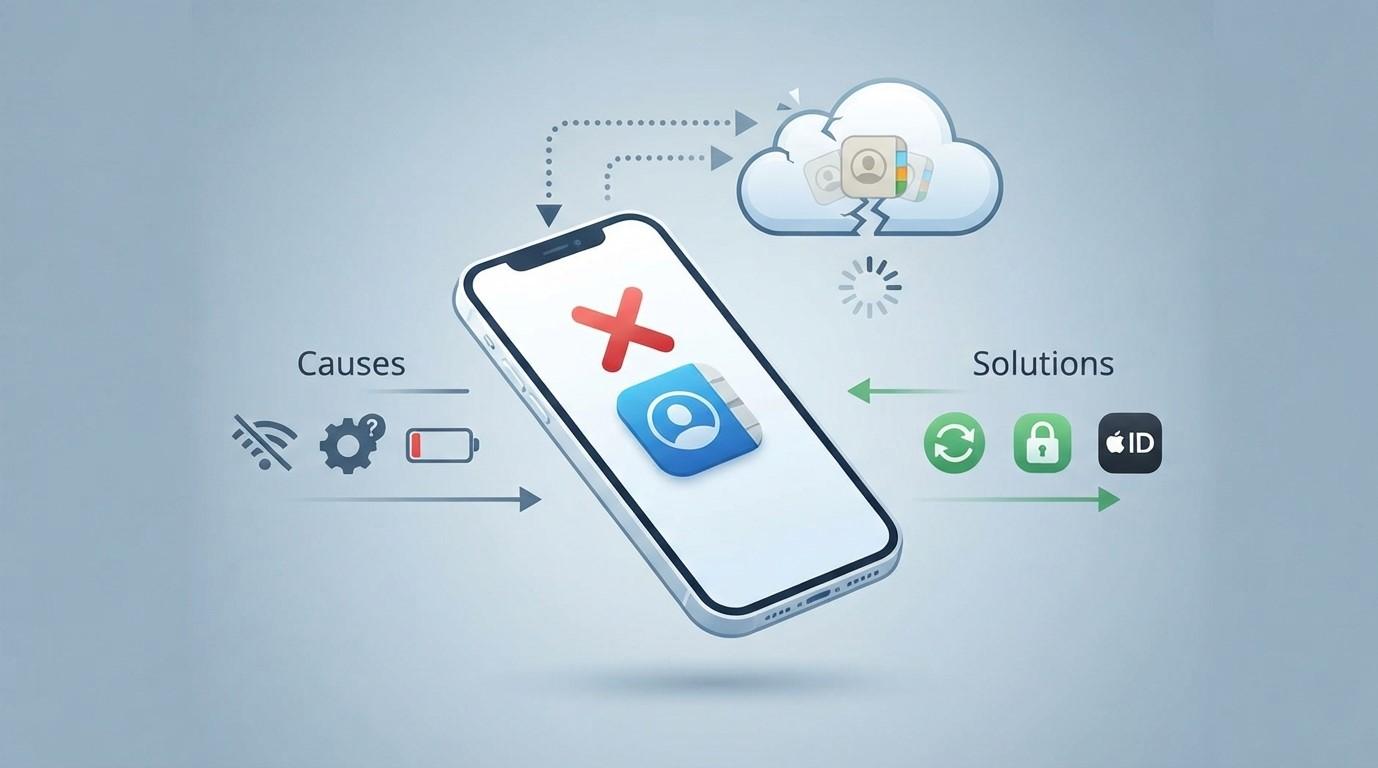
Why Is My iPhone Not Syncing Contacts Properly? Causes and Troubleshooting Solutions

Are your iPhone contacts missing, outdated, or not appearing across your Apple devices? Contact syncing problems can make it difficult to find important phone numbers and stay connected. The issue may involve iCloud settings, account permissions, internet connectivity, or outdated software. Nanotech Mobile helps customers explore smartphone repair solutions, making it a useful local option for anyone searching for the best iPhone repair in Regina or dependable iPhone repair Regina services.
Table of Contents
-
Common Reasons Your iPhone Is Not Syncing Contacts
-
How to Fix iPhone Contact Syncing Problems
-
When Should You Seek Professional Help?
-
Frequently Asked Questions
-
Conclusion and Call to Action
1. Common Reasons Your iPhone Is Not Syncing Contacts
Several settings and technical issues can prevent your iPhone contacts from syncing correctly.
iCloud Contacts Is Turned Off
If Contacts syncing is disabled in your iCloud settings, your saved numbers may not appear on other Apple devices.
Poor Internet Connection
iCloud requires a stable internet connection to synchronize information. Weak Wi-Fi or mobile data can interrupt the process.
Incorrect Account Settings
Your contacts may be saved under different accounts, such as iCloud, Gmail, or Outlook. If the wrong account is selected as the default, new contacts may not appear where expected.
Outdated iOS Software
Older iOS versions can sometimes experience software bugs that affect account synchronization and contact management.
Insufficient iCloud Storage
If your iCloud storage is full, some syncing activities may stop working as expected.
2. How to Fix iPhone Contact Syncing Problems
Try these troubleshooting methods to restore normal contact synchronization.
Check iCloud Contact Settings
-
Open Settings on your iPhone.
-
Tap your Apple Account name.
-
Select iCloud.
-
Find Contacts and make sure syncing is enabled.
If prompted, carefully choose the appropriate option when managing existing contacts.
Check Your Internet Connection
Connect your iPhone to a reliable Wi-Fi network or confirm that mobile data is working. Open a webpage to test the connection.
Review Your Default Contacts Account
Go to Settings > Apps > Contacts > Default Account and check which account is selected. Make sure new contacts are being saved to your preferred account.
Restart Your iPhone
Restarting your device can resolve temporary software issues that interfere with syncing.
Update Your iOS
Navigate to Settings > General > Software Update and check for available updates. Install a compatible update if one is available.
Check iCloud Storage
Open your Apple Account's iCloud settings and review available storage. If storage is full, consider managing unnecessary backups or files before making changes.
3. When Should You Seek Professional Help?
If your contacts still fail to sync after checking your settings and internet connection, the issue may require further investigation.
Consider professional assistance if:
-
Contacts repeatedly disappear or become outdated.
-
Your iPhone has persistent account or software errors.
-
Several syncing features stop working.
-
The device has recently experienced physical or liquid damage.
-
Basic troubleshooting does not resolve the issue.
For customers looking for iPhone repair Regina, NanoTech Mobile can help assess the device problem and discuss suitable repair options.
4. Frequently Asked Questions
Q1. Why are my iPhone contacts not appearing in iCloud?
iCloud Contacts may be disabled, your internet connection may be unstable, or the contacts may be saved under another account.
Q2. How do I manually sync contacts on my iPhone?
Check that iCloud Contacts is enabled and that your device has a working internet connection. Allow some time for synchronization.
Q3. Can a software update fix contact syncing problems?
Yes. An iOS update may resolve software bugs that interfere with contact synchronization.
Q4. Why are my new contacts not appearing on my other Apple devices?
Check whether all devices use the same Apple Account and have Contacts syncing enabled.
Q5. Can I lose my contacts while troubleshooting?
Some account or syncing changes can affect which contacts appear on your device. Check that important contacts are backed up before changing settings or removing accounts.
5. Conclusion and Call to Action
When your iPhone is not syncing contacts properly, the cause may be as simple as disabled iCloud settings, an unstable internet connection, or an incorrect default account. Checking these settings, restarting your device, and updating iOS can often help resolve the issue.
If the problem continues, Nanotech Mobile can help you explore available troubleshooting and repair options. Whether you are searching for the best iPhone repair in Regina or reliable iPhone repair Regina assistance, getting the issue assessed can help you determine the next step.
Having trouble with your iPhone? Contact NanoTech Mobile today to discuss your device issue and explore repair solutions in Regina.